What Is IPTV? How Internet TV Works, Explained Simply
IPTV delivers live TV and on-demand video over your internet connection instead of satellite or cable. Here is how it works, what you need and how to choose a service.
IPTV stands for Internet Protocol Television. Instead of receiving channels through a satellite dish, an antenna or a cable box, an IPTV service sends live TV and on-demand video to your screen over the same internet connection you already use for streaming and browsing. If you have ever watched a live channel inside an app, you have already used a form of IPTV.
This guide explains how IPTV works, what you need to get started, how it compares with cable and satellite, and what to check before you choose an IPTV subscription in the USA.
What is IPTV and how does it work?
A traditional broadcaster pushes every channel to every home at the same time. IPTV works differently: your device requests a stream, and the provider’s servers send that stream to you over the internet. Three building blocks make this possible:
- Servers that receive, encode and distribute channels and on-demand titles.
- Your internet connection, which carries the stream to your home.
- A player app on your TV, streaming stick, phone or computer that decodes the stream and shows the program guide.
Because the stream adapts to your connection, a good service lowers the quality for a moment when your bandwidth drops instead of freezing the picture.
Live TV, video on demand and catch-up
Most IPTV subscriptions combine three kinds of content:

- Live TV: channels that play in real time, with an electronic program guide (EPG) that shows what is on now and next.
- Video on demand (VOD): a library of movies and series you can start whenever you like.
- Catch-up on supported channels, so you can go back to a program that already aired.
What you need to watch IPTV
An internet connection
We recommend at least 10 Mbps per screen for HD and around 25 Mbps for 4K. A wired Ethernet connection or 5 GHz Wi-Fi gives the most stable picture, especially during busy evening hours.
A compatible device
IPTV works on most modern smart TVs (Samsung, LG, Android TV and Google TV), Amazon Fire TV, Apple TV, Android phones and tablets, iPhone and iPad, and Windows or Mac computers. Our device setup guides show which apps work on each one.
A player app and your login
You install a player app such as IPTV Smarters Pro or TiviMate, then sign in with the Xtream Codes or M3U details your provider sends you. Setup usually takes a few minutes.
IPTV vs. cable and satellite
| IPTV | Cable / satellite | |
|---|---|---|
| Equipment | App on devices you already own | Set-top box, dish or cable line |
| Installation | Minutes, no technician | Often a scheduled appointment |
| Watch on several screens | Yes, depending on your plan | Usually extra boxes or fees |
| Contract | Often month-to-month or prepaid | Often long-term contracts |
| Depends on | Internet speed and provider servers | Weather (satellite) and local network |
Is IPTV legal?
IPTV is a delivery technology, and many legitimate TV services use it. Whether a specific service is legal depends on whether it has the rights to the content it distributes. Before you subscribe to any provider, read its terms and make sure you are comfortable with how it operates under the laws where you live.

How to choose an IPTV provider
A long channel list matters less than reliability. Look for:
- Stable servers at peak times, not only during the day.
- A complete EPG, so the guide matches what is actually playing.
- Clear pricing with no automatic renewals you did not agree to.
- Support that answers, ideally around the clock.
- A trial or refund policy, so you can test on your own device and connection.
You can compare our Basic and VIP plans on the IPTV subscription pricing page, or read quick answers in the IPTV FAQ.
IPTV terms explained
Setup guides and support chats use a handful of terms again and again. Knowing them makes installation much quicker.
- EPG (electronic programme guide): the TV guide inside your player app. It shows what is on now and next, and it is loaded from a separate link or comes with your login.
- Xtream Codes login: a server address, a username and a password. Most player apps accept this format, and it loads channels, the guide and the on-demand library in one step.
- M3U playlist: a single link that contains the channel list. It works in almost every player but usually needs the guide added separately.
- Catch-up: the option to replay programmes that aired in the last few days, on channels that support it.
- Buffering: a pause while the app waits for more video data. It is usually caused by Wi-Fi signal, a busy home network or a slow device, rather than the service itself.
- Connections or devices: how many screens can play at the same time on one subscription.
What a typical setup looks like
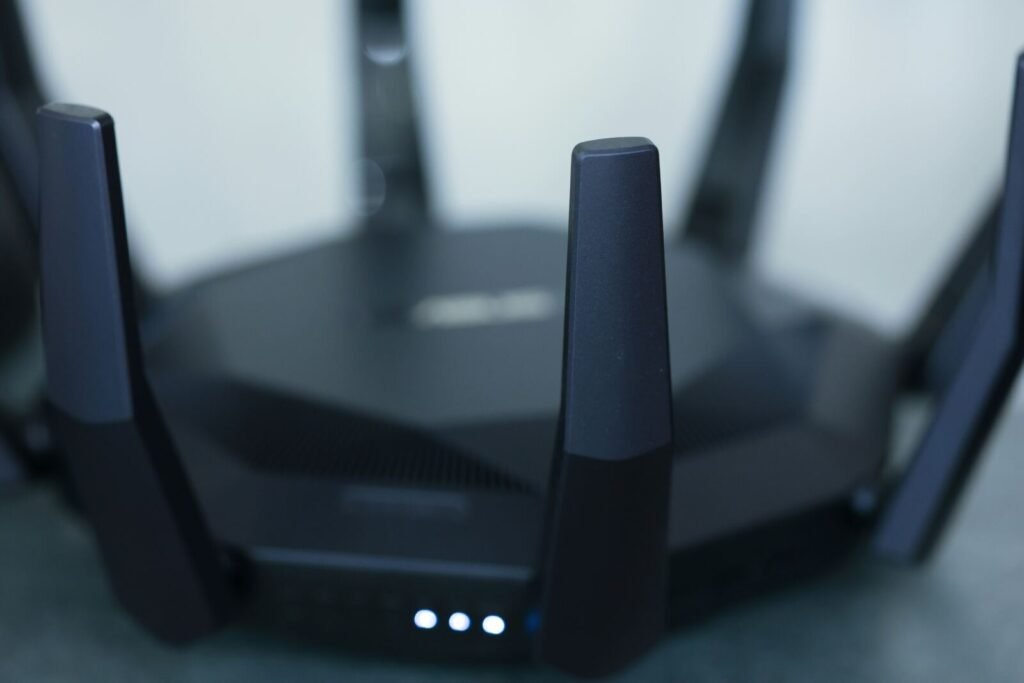
In most homes the picture is simple: a router, a TV or streaming stick, and one player app. You install the app, enter the login details sent by email, wait a minute for the channel list and guide to load, and start watching. If something does not load, the cause is almost always a typing error in the login or an app that needs updating, both of which take minutes to fix.
For the best experience, connect the device with an Ethernet cable where possible, keep the app updated, and restart the device once a week. These three habits solve most of the problems people report in their first month.
Getting started
Choose a plan, install a player app on your device, sign in with the details we email you, and press play. If you would rather test first, request a free trial and try it on your own TV and connection.
Useful references
Order now or ask for a free trial. Activation by email, no contract.