IPTV for Sports Fans: How to Watch Live Sport Without Buffering
How to get smooth live sport on IPTV: connection, device and app settings, a pre-match checklist and what to do if the picture buffers.

IPTV for sports lets you follow live sport on the TV, phone or laptop you already own, with a full guide that shows what is coming up. Live events are also the moment when everyone watches at once, so preparation matters. These seven practical tips keep the picture smooth when it counts.
Why live sport is the hardest test for IPTV
During a big live event, many viewers press play at the same time, and your home network is often busy too, with phones and other screens online. Fast-moving pictures also need more data than a slow drama. A good provider spreads traffic across several servers; on your side, a few simple steps make the biggest difference.
1. Use a cable or 5 GHz Wi-Fi
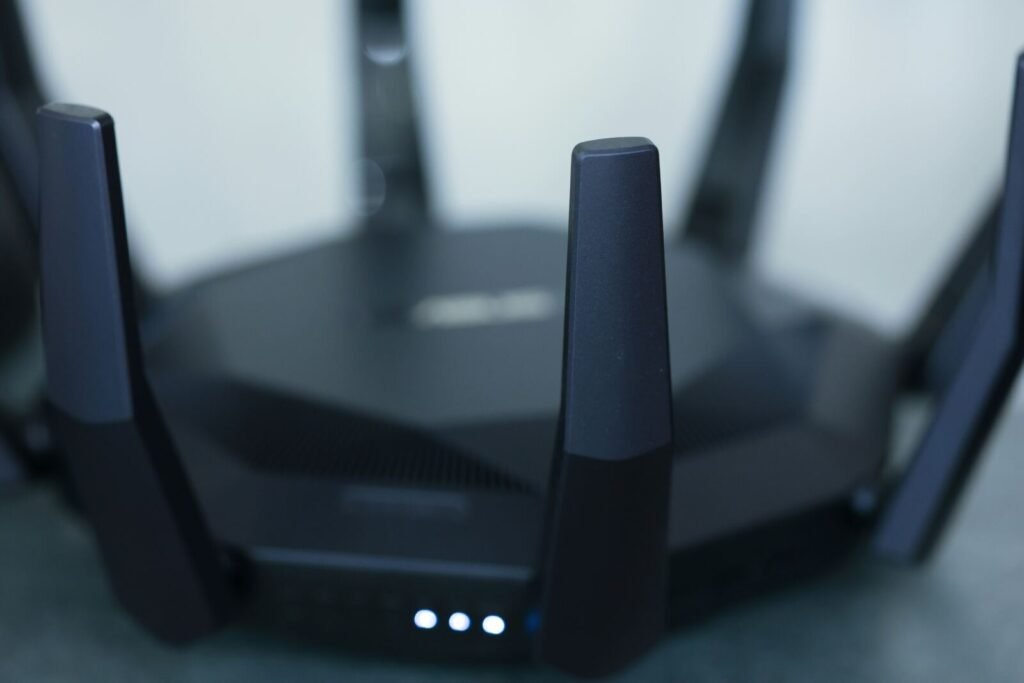
Wi-Fi is the most common cause of buffering during live sport. Connect the TV or streaming device to the router with a network cable, or use the 5 GHz band and keep the router in the same room. A powerline adapter is a good option when a long cable is not practical.
2. Choose the right quality
Plan for about 10 Mbps per screen for HD and 25 Mbps for 4K. If several people are streaming at the same time, choose the HD version of the event: on most screens it still looks excellent and is far more forgiving of a busy network.
3. Prepare before kick-off
- Restart your streaming device and router an hour before the event.
- Open the channel ten minutes early and check the picture and sound.
- Pause downloads, game updates and cloud backups on other devices.
- Save the event channels as favourites so switching is instant.

4. Pick a capable device
Recent streaming sticks, Android TV boxes and smart TVs handle live sport well. Very old sticks with little memory struggle with fast motion and long sessions. If menus are slow and the stick is several years old, a newer model is an inexpensive upgrade.
5. Tune your player app
- Enable frame-rate matching on the device for smoother motion.
- Try a different video player in the app settings if the picture stutters.
- Use the guide to see upcoming events and set reminders where your app supports it.
6. Watch on several screens
Many households follow more than one event at a time. Each screen playing at once uses one connection, so choose a plan with enough devices. Phones and tablets are ideal for a second event in another room.
7. Know what to do if it buffers
Switch to the HD version, move closer to the router or connect a cable, and restart the app. If one event still struggles while others play fine, tell our support team the channel and time; that helps us check it quickly.
Next steps
Read our guide to 4K IPTV and the IPTV troubleshooting guide, then compare our IPTV subscription plans. The best way to judge IPTV for sports is on your own setup: request a free trial before the next big live event.
Frequently asked questions
What internet speed do I need for live sport on IPTV?
About 10 Mbps per screen for HD and 25 Mbps for 4K, with some headroom for other devices.
Why does IPTV buffer during big matches?
Usually because the home network is busy or Wi-Fi is weak at that moment. A cable connection and the HD version of the channel are the quickest fixes.
Can I watch two events at once?
Yes, if your plan includes at least two devices. Each screen playing at the same time uses one connection.
Useful references
Order now or ask for a free trial. Activation by email, no contract.