IPTV Remote Control Guide: Best Remotes and Shortcuts
Which IPTV remote to use with your device, handy shortcuts in popular IPTV players, how HDMI-CEC lets one remote control everything and simple fixes.
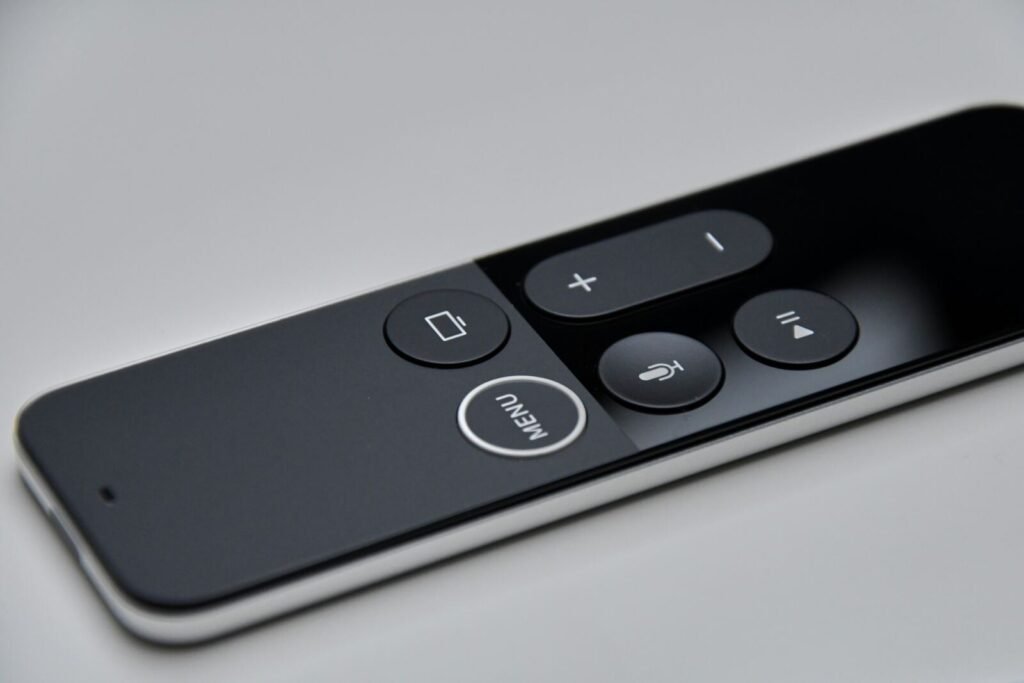
A good IPTV remote makes daily viewing faster: opening the guide, switching channels and searching for a film should take a single press. Most streaming devices come with a capable remote, and a few settings and shortcuts make it even better. This guide covers the best options for each device and the most useful tricks.
The remote that came with your device
- Fire TV: the Alexa Voice Remote works with all IPTV players installed on the stick. Newer versions include TV volume and power buttons.
- Android TV and Google TV: the included remote has a direction pad and a back button; some models add number keys.
- Smart TVs: the TV’s own remote controls the built-in IPTV app directly.
- Apple TV: the Siri Remote works well with Apple TV players.
Useful shortcuts in IPTV apps
- OK / Select: opens the channel list or info bar during playback in most players.
- Up / Down: switches channel in many players while watching.
- Long-press OK: adds a channel to favourites in several apps.
- Menu or the three-line button: opens options such as audio track, subtitles and video player.
- Back: returns to the previous channel or screen.
Exact shortcuts vary by app; check the settings menu for a keys or remote section.

One remote for everything with HDMI-CEC
HDMI-CEC lets your TV remote control a connected streaming device, or the device remote turn the TV on and change its volume. It is called Anynet+ on Samsung, SimpLink on LG, Bravia Sync on Sony and similar names elsewhere. Turn it on in both the TV settings and the device settings, then test power and volume.
Using your phone as an IPTV remote
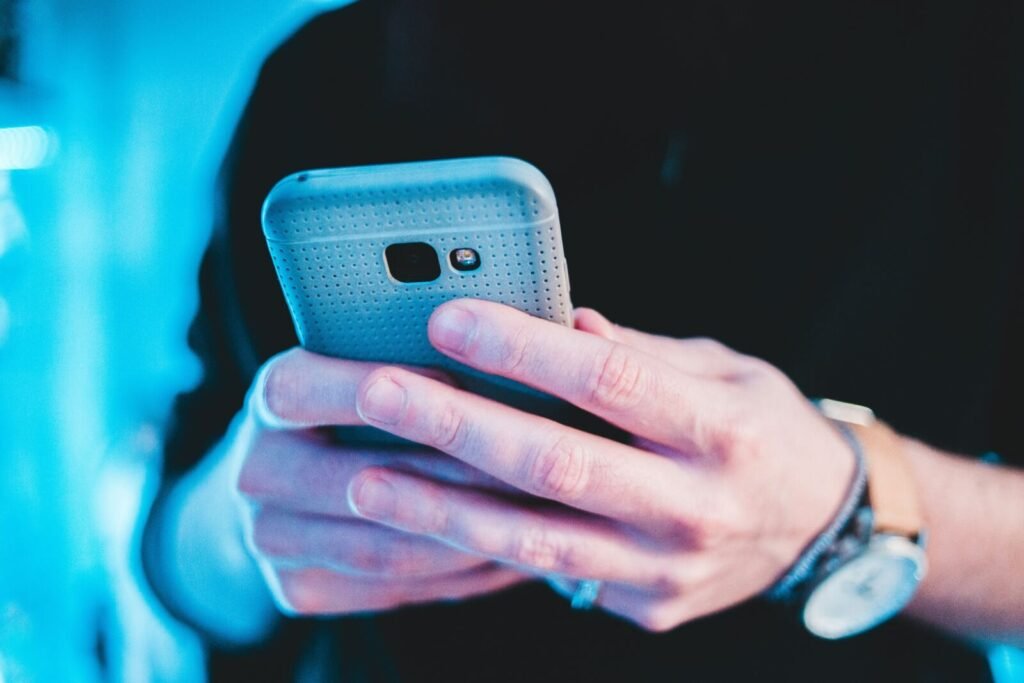
Official remote apps for Fire TV, Google TV and Apple TV turn your phone into a remote with a keyboard, which is much faster for typing search terms and login details. The phone and the device must be on the same Wi-Fi network.
Upgrading your IPTV remote
If you use an Android TV box with a basic remote, an air mouse remote with a small keyboard on the back makes navigation and typing easier. Universal remotes can also learn the buttons of several devices. Before buying, check that the remote is compatible with your device model.
Remote not working? Quick fixes
- Replace the batteries, even if they are fairly new.
- Re-pair the remote: on Fire TV, hold the Home button for ten seconds.
- Remove obstacles between the remote and the device, especially for infrared remotes.
- Restart the streaming device.
- Use the phone remote app while you sort out the physical remote.

Next steps
See our device setup guides, the best IPTV apps and the IPTV FAQ. Compare IPTV subscription plans or request a free trial to test your IPTV remote setup at home.
Frequently asked questions
Can I use my TV remote for IPTV?
Yes. With a built-in TV app the TV remote works directly, and with a streaming device HDMI-CEC often lets the TV remote control it too.
How do I switch channels faster?
Use the up and down buttons during playback in players that support it, and save your most-watched channels as favourites.
Can my phone be an IPTV remote?
Yes. Official remote apps for Fire TV, Google TV and Apple TV work over your home Wi-Fi and include a keyboard.
Useful references
Order now or ask for a free trial. Activation by email, no contract.