IPTV on Roku: What Works, What Does Not, and the Best Workarounds
Roku does not offer a general IPTV player for Xtream Codes or M3U logins. Here is what that means for your Roku TV and the simplest workarounds that do work.
Roku is one of the most common streaming platforms in American homes, so “how do I watch IPTV on Roku TV?” is one of the questions we hear most. The honest answer: Roku does not offer a general-purpose IPTV player that accepts Xtream Codes or M3U logins. Here is why, and what to do instead.
Why IPTV on Roku is different
Roku runs its own operating system and only allows apps from the Roku Channel Store. Apps that let you add your own playlist or Xtream Codes login are not generally available there, and installing Android apps is not possible. That is why IPTV Smarters Pro, TiviMate and similar players do not run on Roku.
Workaround 1: add a Fire TV Stick (recommended)
A Fire TV Stick 4K plugs into a free HDMI port on your Roku TV and gives you full IPTV support. Switch the TV input to the stick and use our Firestick installation guide. This is the cheapest and most reliable fix.

Workaround 2: use an Android TV or Google TV device
A Chromecast with Google TV or another Android TV box offers the widest choice of players from Google Play. Setup takes a few minutes.
Workaround 3: screen mirroring
Many Roku TVs support screen mirroring from Android phones and Windows PCs. It works for occasional viewing, but picture quality and stability are lower than with a dedicated device, so we do not recommend it for live sport.
Setting up a Fire TV Stick on a Roku TV, step by step
- Plug the stick into a free HDMI port and connect its power adapter to the wall, not the TV’s USB port, which may not provide enough power.
- Switch input with the Roku remote: choose the HDMI port from the Roku home screen tiles.
- Pair the Fire TV remote and connect to your Wi-Fi.
- Install your IPTV player as described in our Firestick guide and sign in with your login details.
- Rename the input on the Roku home screen (for example “IPTV”) so everyone in the house can find it.
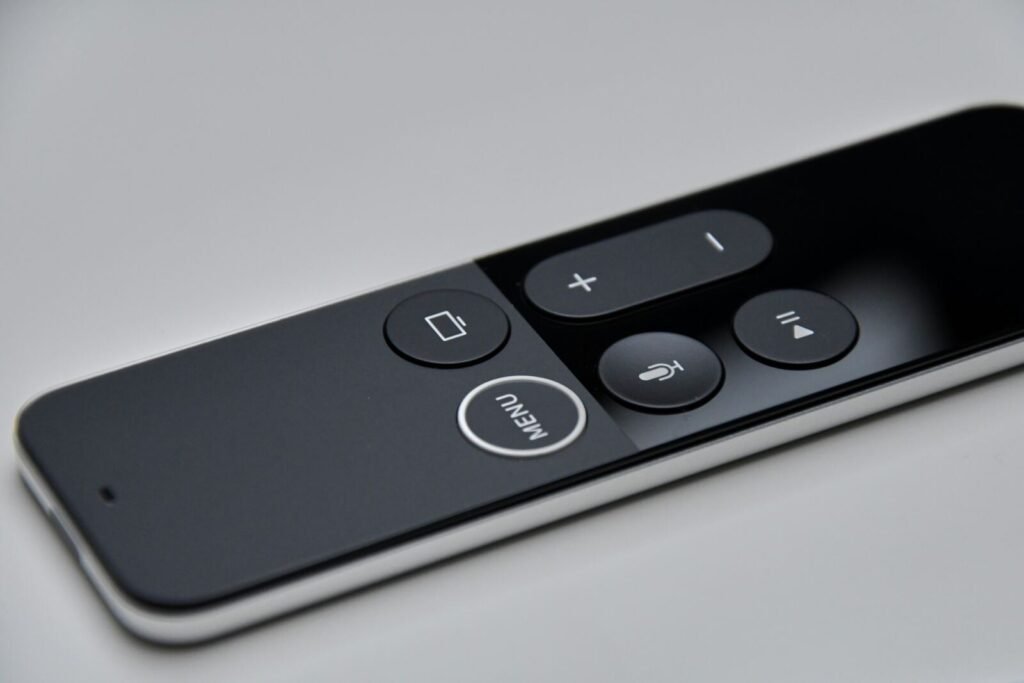
Many Roku TVs support HDMI-CEC (called 1-touch play in Roku settings). When it is enabled, pressing a button on the Fire TV remote switches the TV to the right input automatically, so the setup feels like one device.
Which option should you choose?
| Option | Cost | Quality | Best for |
|---|---|---|---|
| Fire TV Stick 4K | Low | Up to 4K | Most households |
| Android TV / Google TV | Low to medium | Up to 4K | Widest app choice |
| Screen mirroring | Free | Variable | Occasional viewing |
All our plans work with these devices. See every option on the devices page or compare IPTV plans.
Useful references
Frequently asked questions
Can I install IPTV Smarters on Roku?
No. Roku does not support installing Android apps, and IPTV Smarters Pro is not available in the Roku Channel Store.
What is the cheapest way to watch IPTV on a Roku TV?
Plug a Fire TV Stick into a free HDMI port on the TV. It costs little and supports 4K.
Will my subscription work if I change devices later?
Yes. Your login works on any supported device, within the number of screens in your plan.
Order now or ask for a free trial. Activation by email, no contract.